Plugin / Enlighter – Customizable Syntax Highlighter

Andi Dittrich
Frequently Asked Questions (FAQ)

To use Enlighter together with autooptimize it’s required to exclude the Enlighter resources from autooptimize (EnlighterJS is already optimized!) Goto Settings / Autooptimize / Javascript options / Exclude scripts from Autoptimize and add enlighter/resources/ to the end of the comma separated list.
No, you can’t use Enlighter together with the Crayon Syntax highlighter because it may take over the Enlighter elements.
If possible, use the VisualEditpr mode! The use of Shortcode is only recommended when working in Text-Mode. By switching to the Visual-Editor-Mode whitespaces (linebreaks, indents, ..) within the shortcode will get removed by the editor – using Visual-Editor mode will avoid such problems.
This problem is caused by WordPress’ wpAutoP filter – to fix this issue, go to “Enlighter Settings -> Advanced -> WpAutoP Filter Priority” and change this value to “Priority 12 (after shortcode). For cross-plugin-compatibility this feature is disabled by default.
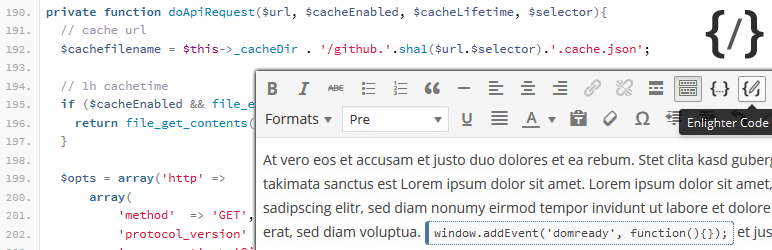
You have to enable the full toolbar by clicking on the Show/Hide Kitchen Sink button (last icon on the toolbar)
The directory /wp-content/plugins/enlighter/cache/ must be writable – the generated css files as well as some cached content will be stored there for performance reasons. Try to set chmod to 0644 or 0770
The cache-directory wp-content/plugins/enlighter/cache have to be writable, the generated stylesheet will be stored there. Set the directory permission (chmod) to 0644 or 0777
This feature requires WordPress 3.9 (new TinyMCE Version) – but you can still use shortcodes for inline highlighting!
To enable the Theme-Customizer you have to select the theme named Custom as default theme. The Theme-Customizer will appear immediately.
Yes! since version 1.5 all shortcodes support the attribute highlight. Shortcode Example: highlight the lines 2,3,4,8 of the codeblock [js highlight="2-4,8"]....some code..[/js]
The complete EnlighterJS project can be found on GitHub
Yes you can! – The simplest way is to download the EnlighterJS CSS sources and modify one of the standard themes. Finally create a directory named enlighter into your WordPress theme and put the css file into it.
You have to enable the frontend editing function: Enlighter Settings Page -> Advanced -> TinyMCE Integration (Visual Editor) -> Enable Frontend Integration. This feature also requires a logged-in user with edit_posts and/or edit_pages privileges and is only available for the wp_editor function – no third party editors are supported!
If you are already using MooTools on your page, you have to disable the automatic inclusion of MooTools by Enlighter. Goto the Enlighter options page -> Advanced and select “Not include” as MooTools source.Note: EnlighterJS requires MooTools > 1.4
Of course, the filter hook enlighter_startup can be used to terminate the plugin initialization
In case you found a security issue in this plugin – please write a message directly to Andi Dittrich – DO NOT POST THIS ISSUE ON GITHUB OR WORDPRESS.ORG – the issue will be public released if it is fixed!
Write a message to Andi Dittrich (andi DOT dittrich AT a3non DOT O R G) or open a New Issue on GitHub

Ratings

4.7
48 reviews

Rating breakdown

Details Information

Version

3.10.0

First Released

23 May, 2013

Total Downloads

139,841

Wordpress Version

3.9 or higher

Tested up to:

5.3

Require PHP Version:

-

Tags

Contributors

Languages

The plugin hasn't been transalated in any language other than English.

DIRECTORY DISCLAIMER

The information provided in this THEME/PLUGIN DIRECTORY is made available for information purposes only, and intended to serve as a resource to enable visitors to select a relevant theme or plugin. wpSocket gives no warranty of any kind, express or implied with regard to the information, including without limitation any warranty that the particular theme or plugin that you select is qualified on your situation.

The information in the individual theme or plugin displayed in the Directory is provided by the owners and contributors themselves. wpSocket gives no warranty as to the accuracy of the information and will not be liable to you for any loss or damage suffered by you as a consequence of your reliance on the information.

Links to respective sites are offered to assist in accessing additional information. The links may be outdated or broken. Connect to outside sites at your own risk. The Theme/Plugin Directory does not endorse the content or accuracy of any listing or external website.

While information is made available, no guarantee is given that the details provided are correct, complete or up-to-date.

wpSocket is not related to the theme or plugin, and also not responsible and expressly disclaims all liability for, damages of any kind, arising out of the use, reference to, or reliance on, any information or business listed throughout our site.

Keep Leading Your Followers!
Share it for them.



