Plugin / Event Calendar WD – Responsive Event Calendar plugin

10Web
Frequently Asked Questions (FAQ)

To use the created calendars within a page or post you should use the shortcode. Open the page/post from the back end. Press on the Event Calendar WD icon within the editor. The shortcode with three tabs will appear. An alternative is copying the shortcode from the All Calendars subsection (it will take default settings) and further editing it. General Select Calendar. Using the drop-down list choose the calendar you want to add. Events per page in list view. By default 5 events are being listed in list view. You can change the number to the desired quantity. Enable Event search. Check the box to enable front end search for the events. Views You can set up to 7 different views. By using the drop-down you can select a view for each tab. The order of the tabs will be based on the selection. Filters This section works with filters add on. You can specify the list of the filtering options you want to display for the front end users.
You can install a number of management-related, event grouping and integrative add-ons to boost your experience. Please note that the Calendar add-ons are supported by the premium version of Event Calendar WD. FRONTEND MANAGEMENT – This add-on is designed for allowing the users/guests to add events to the calendar from the front end. In addition, the users can also have permissions to edit/delete their events. The Frontent Management add-on of this event manager plugin turns it into an interactive calendar. IMPORT/EXPORT – The following data of the Event Calendar WD can be exported and imported: Events, Categories, Venues,Organizers and Tags. The exported/imported data will be in CSV format, which can be further edited, modified and imported. CUSTOM FIELDS – Custom Fields Add-On will enable you to have more fields for more detailed and structured content: you can use this add-on and create additional fields for each event, venue and organizer. SUBSCRIBE – Event Calendar Subscription Add-on is a great tool which allows subscribing to events based on category, tag, organizer and venue. EXPORT TO GCAL/ICAL/OUTLOOK – Export add-on will allow your calendar users to export single or whole month events in CSV and ICS formats and import to their iCalendars, Google and Outlook calendars. This is a wonderful feature, since many users often keep their event booking data, restaurant reservations, or schedule on iCal, Google Calendar or Outlook Calendar. With this add-on, you will not need to recreate all these events, simply import them into the events manager. EMBED – This add-on will allow displaying a calendar from your site to other websites using embed code without need of installing ECWD plugin. FILTER ADD-ON – This add-on is designed for advanced event filter and browsing. It will display multiple filters, which will make it easier for the user to find the relevant event from the calendar. COUNTDOWN ADD-ON – With this add-on you can add an elegant countdown to your site. It supports calendar events or a custom one. The styles and colors of the countdown can be modified. It can be used both as widget and shortcode. UPCOMING EVENTS – The Upcoming events widget is designed for displaying upcoming events lists. The number of events, the event date ranges, as well as the appearance of the widget is fully customizable and easy to manage. VIEWS – ECWD Views is a convenient add-on for displaying one of the additional Pro views within the pages and posts. The add-on allows choosing the time range of the events, which will be displayed with a particular view. FACEBOOK INTEGRATION – This addon integrates ECWD with your Facebook page and gives functionality to import events or just display events without importing. GOOGLE CALENDAR INTEGRATION – This addon integrates ECWD with your Google Calendar and gives functionality to import events or just display events without importing. ICAL INTEGRATION – This addon integrates ECWD with your iCAL Calendar and gives functionality to import events or just display events without importing. EVENT TICKETS – Event Tickets Add-on is an easy set up tool for integrating ECWD with WooCommerce to sell tickets for your events. These tickets are sold as bookings from your calendar and you are notified about each sale. This event ticketing power-up of the calendar manager plugin allows you to add the following features to your website: event registration/online reservation system, appointment booking calendar, booking system with a booking form, RSVP/booking calendar, ticket sales.
Yes, you can publish the events calendar as a widget. To do so, please follow the steps below. Go to Appearance>Widgets toolbar. Find the Event Calendar WD widget and assign it to a custom widget position Title. Set a title for the widget. Alternatively, you can leave it blank.Calendar to Display. Select the calendar which will be displayed as a widget.Display events as. Here you can set the events to be displayed either in a Month or List view.Events per page as a list view. Here you can set the number of events you want to be displayed when list view is in use.
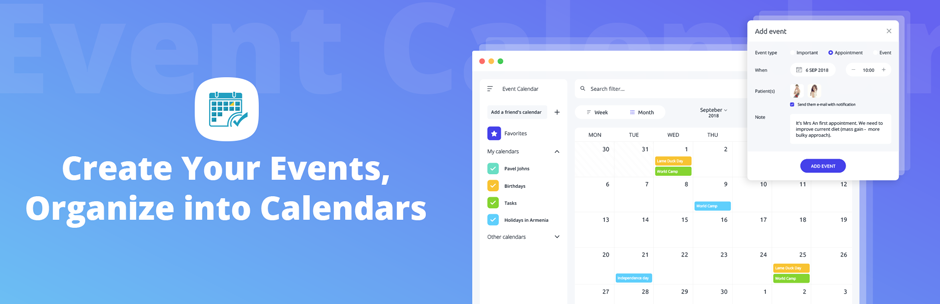
Open your availability calendar plugin and navigate to the Add New section in the menu. Here you can create new events by specifying such details, as:Title. Set a title for the event.Content. Provide the details of the event.Event Settings: These settings will help you configure the event dates, repeat rates, URL, venues and organizers. * Event Dates. Specify the starting and finishing dates and times for the event using the datepicker. If the event lasts all day, check the “All Day” option. * Repeat Rate. If the event is recurring, you can set a repeat rate and specify the days for repeating the event on a daily, weekly, monthly or yearly basis. * Daily repeat. Here you can set the frequency of the repeat rate and its finish date. For example, repeat every 4 days until October 5, 2017. * Weekly repeat. Here you can set the finish date and the weekly frequency of the repeat by specifying a repetition day for the selected number of weeks. For example, repeat every 2 weeks on Mondays until October 5, 2015. * Monthly repeat. Here you can set the monthly frequency and the finish date of the repeat. This can be done either by setting the event on the same day of the month as the original event or repeating it on a specified day of the first, second, third, fourth or simply the last week of the month. For example, repeat the event 2 months on the first Friday of the month until October, 2017. * Yearly repeat. Here you can set the yearly frequency and the finish date of the repeat. This can be done by setting the event on the same day of every year as the original event or repeating it every specific month on a specified day of the first, second, third, fourth or simply the last week of that month. For example, repeat the event 2 years on the first Friday of the September until October, 2017. * Event Venue. Select the venue of the event from the existing venues or create a new one by adding a venue title, description, address, phone, website and location using a Google Maps key if necessary. Please note that you need to get a Google Maps key from Google APIs first to be able to configure the Gmaps features and styles in the plugin Settings. As for a newly created venue, it will automatically be added to your Venue list. * Event URL. Set an external URL, which will be included within the event description. * Event Video URL. Set the absolute URL of a YouTube/Vimeo video to be displayed within the event. * Calendars. You can choose the calendar to which the event will be added to. * Organizers. You can choose the organizer of the event from the existing organizers or set a new one by adding the organizer title, description, phone and website. * Event Location. If the venue is not set, you can specify a new location for the event using Google Maps feature. Note that the location will not be added to the Venue list.
If you need to change event date format, please open Calendar Settings and type necessary type in Date format input. For instance, in case you want to have dates as 03/1/2015, set the format to M/d/Y.
To add a new venue navigate to the Venues menu in plugin menu tabs and click on the Add New button. You can create new venues by specifying such details, as: Title. Set a title for the venue.Content. Provide details about the specific venue if necessary.Address. Fill in the address of the venue or show the venue location on Google Maps by checking the ‘Show Google Maps’ option. You can drag and drop the Google Maps marker to the location, which will then be displayed with the event. Please note that you need to get a Google Maps key from Google APIs first to be able to configure the maps features and styles in the plugin Settings.Phone. Fill in the phone number of the venue.Website. Enter the web-address of the venue.Featured image. Set an image to be associated with the specific venue.
With the help of Event Filter add-on of Event Calendar WD Premium you can add extra user-friendly navigation on your custom calendars. The add-on does not require special configuration. When inserting a calendar shortcode into a page or post, all available filters are added automatically. They display as checkboxes, which let users to select one or more options and filter events accordingly.
Premium version of Event Calendar WD plugin provides Upcoming Events add-on. With a simple configuration, it lets you place upcoming events calendar on your website as a WP calendar widget.
Facebook Integration add-on of Event Calendar WD Pro lets you incorporate Facebook events with your WordPress site, and display the events feed within your WP calendar. Turn it into a facebook event calendar by simply providing Facebook page ID when you edit your calendar. Alternatively, you can physically import the events from Import FB Events page, and add them to your Facebook calendar afterwards.
This beautiful calendar plugin for WordPress provides Google Calendar Integration add-on for its Premium version. You can import Gcal into Event Calendar WD, or simply display them on your calendar without importing. Simply copy your Google Calendar ID to the corresponding option among WP calendar settings, and the events will appear. When you make changes on your Google Calendar, the events on your attractive calendar will update automatically.
Frontend Event Management add-on of this events calendar plugin turns your event list into an online booking calendar. It lets users add their own events with desired dates and times, serving as a booking plugin. This add-on comes handy, when you require meeting scheduling and appointment booking calendar, or event booking functionality. Users can place event bookings by adding new events from calendar page, which will be queued for website administrator’s approval. Tune up Event Calendar WD Pro with Frontend Event Management add-on, and set up a powerful online reservation calendar on your WordPress website!
You can retrieve iCal events lists into the Premium version of this events management plugin using its iCal Integration add-on. Start importing iCal event list to your website calendar in a simple and practical way. The iCal Integration add-on allows you to incorporate the events with the following ways: * Fetch them from iCalendar, without physically having the events in Event Calendar plugin. * Import the events and bring them to your WordPress site. By importing the iCal events, you will bring their descriptions, details, location and settings. You can also choose the category from which you wish to import the events. Note: Make sure the iCalendar you are trying to incorporate is shared publicly.
Sell the event subscription through Premium version of this WordPress events manager plugin and its Event Ticketing add-on. It allows you to organize event tickets and reservation easily. This add-on is the solution for event ticketing feature, incorporating Event Calendar WD with WooCommerce. The tickets manager tool is easy-to-use. The integration between the add-on and WooCommerce plugin is automatic. With just a few clicks, users are able to buy tickets and make reservation for your event. You can set the available dates for ticket sales, price, and stock on the event page. While the tickets are created within Event Calendar WD plugin, the payment of event ticketing is processed by WooCommerce. As the tickets are sold out, visitors will get notified about it with “Sold Out” banner. Note: Make sure to install/activate WooCommerce plugin to your site in order to use Event Ticketing add-on.
You can incorporate Google Maps with this event subscription plugin the following way. Edit the venue of your event, then mark Show Google Maps checkbox. This WordPress events manager plugin will allow you to fill in Address of your venue, and Google Maps marker will be placed on the pointed location. You can also specify Latitude and Longitude of your address. This will make the event reservation process for your users easier. Note, that Google Maps API key is required for the maps to display correctly on your events management plugin. To get it, visit Google API Console.
Using Event Calendar WD WordPress reservation plugin, you can add different background colors to events of each category. To do that, edit the category of your event list, and use Category color option to set the background. Additionally, you can use Image option to place an icon for your event category.
Event Calendar WD plugin allows you to indicate organizers for each of your events. To begin creating organizers, visit Events > Organizers page, or use Add Organizer link at the bottom of event editor dashboard. Fill in the following information first: Title, Description, Phone, Website. Press Save Organizer button. All created organizers will display here as a list. In addition to simply showing the host of the event, organizers can contribute to event subscription feature of Subscribe add-on. Users are able to subscribe to events that belong to a selected organizer.

Ratings

4.6
201 reviews

Rating breakdown

Details Information

Version

1.1.32

First Released

03 Jun, 2015

Total Downloads

861,617

Wordpress Version

3.9 or higher

Tested up to:

5.3

Require PHP Version:

5.2 or higher

Tags

Contributors

Languages

The plugin hasn't been transalated in any language other than English.

DIRECTORY DISCLAIMER

The information provided in this THEME/PLUGIN DIRECTORY is made available for information purposes only, and intended to serve as a resource to enable visitors to select a relevant theme or plugin. wpSocket gives no warranty of any kind, express or implied with regard to the information, including without limitation any warranty that the particular theme or plugin that you select is qualified on your situation.

The information in the individual theme or plugin displayed in the Directory is provided by the owners and contributors themselves. wpSocket gives no warranty as to the accuracy of the information and will not be liable to you for any loss or damage suffered by you as a consequence of your reliance on the information.

Links to respective sites are offered to assist in accessing additional information. The links may be outdated or broken. Connect to outside sites at your own risk. The Theme/Plugin Directory does not endorse the content or accuracy of any listing or external website.

While information is made available, no guarantee is given that the details provided are correct, complete or up-to-date.

wpSocket is not related to the theme or plugin, and also not responsible and expressly disclaims all liability for, damages of any kind, arising out of the use, reference to, or reliance on, any information or business listed throughout our site.

Keep Leading Your Followers!
Share it for them.



