Plugin / Helpie FAQ – WordPress FAQ Accordion Plugin

HelpieWP
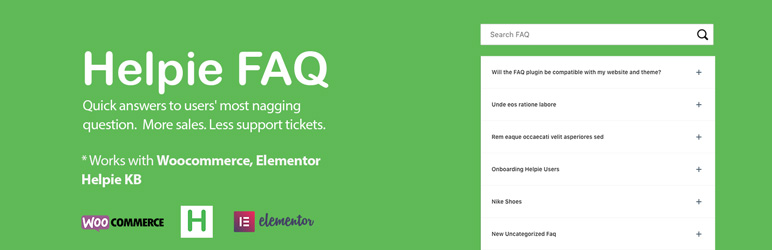
Frequently Asked Questions (FAQ)

Download the “Helpie FAQ” plugin. Unzip the downloaded package. Upload the Helpie FAQ folder to the /wp-content/plugins/ directory of your WordPress setup. Activate the plugin from the “Plugins” menu in the WordPress Admin (OR) Download ‘Helpie FAQ’ plugin. Click on ‘Plugins’ menu option in WordPress admin. Click on ‘Add New’ option in plugins. Upload the ‘Helpie FAQ’ plugin and ‘Activate’ it.
Once you the activated the plugin, you will see an option Helpie Faqs in the the WordPress admin sidebar menu. Under that, click on “Add New”. Enter the FAQ question in the Title box and the answer in the main content box. You can select or add FAQ categories or tags in the right side menu and assign it to a particular question. Click the publish button to create the FAQ.
Using Helpie FAQ, you can display Faq on any of your page/ posts using three different ways: Using the Shortcode. Using the Elementor page builder. Using Widgets.
You can place the shortcode [helpie_faq] in the content area of any page you want to display the FAQ.
You can also display the Faq on any page using the Elementor page builder. First, download and Install the Elementor page builder from WordPress.org. Go to any pages and you will see an option “Edit with Elementor”. Just select it and it will open the elementor builder in your page. Type “Helpie FAQ” in the builder section in the left and drag it to the content area in the right. Once placed, you can see the FAQ arranged which you created. You can choose the title for Faq, choose which categories should be displayed, choose the theme either light or dark, toggle on/off, open/close the first item, and much more. You can also sort the faq by alphabetical or their publish date and even the updated date. You can either arrange it in Ascending or descending order and set the limit of faq’s to be displayed. You can also show/hide the Live search using the elementor page builder.
You can also place the faq’s using the widgets option in the dashboard -> Appearance -> Widgets. You will see an option “Helpie FAQ”. You can place it anywhere in the sidebar, footer or any area which your theme allows.
Create any new page or post and you will see an option “Add Helpie shortcode”. Click that and select the “Helpie FAQ” option in that. Using our Helpie FAQ builder, you can modify the title, filter the categories to be displayed, set the toggle option and everything else whichever could be done via settings.
Yes, Sure. User FAQ submission is a premium feature of Helpie FAQ by which any user can submit their questions and answers which can be added to the FAQ. You can also set the option to directly publish the FAQ or to publish after approval. Email notifications can also be sent to both the Admin and User.

Ratings

5
11 reviews

Rating breakdown

Details Information

Version

0.7.8

First Released

21 Sep, 2018

Total Downloads

7,111

Wordpress Version

5.0 or higher

Tested up to:

5.2.4

Require PHP Version:

5.6 or higher

Tags

Contributors

Languages

The plugin hasn't been transalated in any language other than English.

DIRECTORY DISCLAIMER

The information provided in this THEME/PLUGIN DIRECTORY is made available for information purposes only, and intended to serve as a resource to enable visitors to select a relevant theme or plugin. wpSocket gives no warranty of any kind, express or implied with regard to the information, including without limitation any warranty that the particular theme or plugin that you select is qualified on your situation.

The information in the individual theme or plugin displayed in the Directory is provided by the owners and contributors themselves. wpSocket gives no warranty as to the accuracy of the information and will not be liable to you for any loss or damage suffered by you as a consequence of your reliance on the information.

Links to respective sites are offered to assist in accessing additional information. The links may be outdated or broken. Connect to outside sites at your own risk. The Theme/Plugin Directory does not endorse the content or accuracy of any listing or external website.

While information is made available, no guarantee is given that the details provided are correct, complete or up-to-date.

wpSocket is not related to the theme or plugin, and also not responsible and expressly disclaims all liability for, damages of any kind, arising out of the use, reference to, or reliance on, any information or business listed throughout our site.

Keep Leading Your Followers!
Share it for them.



