Plugin / Media Library Assistant

David Lingren
Frequently Asked Questions (FAQ)

You can add support for many attachment metadata values such as file size by visiting the Custom Fields tab on the Settings page. There you can define a rule that maps the data to a WordPress custom field and check the “MLA Column” box to make that field a sortable column in the Media/Assistant submenu table. You can also use the field in your [mla_gallery] shortcodes. For example, this shortcode displays a gallery of the ten largest images in the “general” category, with a custom caption: [mla_gallery category="general" mla_caption="{+caption+}
{+custom:File Size+}" meta_key="File Size" orderby="meta_value" order="DESC" numberposts=10]

The powerful [mla_gallery] shortcode supports almost all of the query flexibility provided by the WP_Query class. You can find complete documentation in the Settings/Media Library Assistant Documentation tab. A simple example is in the preceding question. Here’s an example that displays PDF documents with Att. Category “fauna” or Att. Tag “animal”: [mla_gallery post_mime_type="application/pdf" size=icon mla_caption="{+title+}" tax_query="array(array('taxonomy'=>'attachment_category','field'=>'slug','terms'=>'fauna'),array('taxonomy'=>'attachment_tag','field'=>'slug','terms'=>'animal'),'relation'=>'OR')"]
Yes! The [mla_gallery] shortcode supports all MIME types when you add the post_mime_type parameter to your query. You can build a gallery of your PDF documents, plain text files and other attachments. You can mix images and other MIME types in the same gallery, too. Here’s an example that displays a gallery of PDF documents, using Imagick and Ghostscript to show the first page of each document as a thumbnail: [mla_gallery post_mime_type=application/pdf post_parent=all link=file mla_viewer=true columns=1 orderby=date order=desc]
No; that’s a structural limitation of the WordPress database. However, you can use Categories, Tags and custom taxonomies to organize your images and associate them with posts and pages in any way you like. The [mla_gallery] shortcode makes it easy. You can also use the ids= parameter to compose a gallery from a list of specific images.
Yes! You can activate or deactivate support for Categories and Tags at any time by visiting the Media Library Assistant Settings page.
No! The Assistant supplies pre-defined Att. Categories and Att. Tags; these are WordPress custom taxonomies, with all of the API support that implies. You can activate or deactivate the pre-defined taxonomies at any time by visiting the Media Library Assistant Settings page.
Yes. Any custom taxonomy you register with the Attachment post type will appear in the Assistant UI. Use the Media Library Assistant Settings page to add support for your taxonomies to the Assistant UI.
You can use other gallery-generating shortcodes to give you the data selection power of [mla_gallery] and the formatting/display power of popular alternatives such as the WordPress.com Jetpack Carousel and Tiled Galleries modules. Any shortcode that accepts “ids=” or a similar parameter listing the attachment ID values for the gallery can be used. Here’s an example of a Jetpack Tiled gallery for everything except vegetables: [mla_gallery attachment_category=vegetable tax_operator="NOT IN" mla_alt_shortcode=gallery type="rectangular"] Most lightbox plugins use HTML class= and/or rel= tags to activate their features. [mla_gallery] lets you add this tag information to your gallery output. Here’s an example that opens PDF documents in a shadowbox using Easy Fancybox: [mla_gallery post_mime_type=application/pdf post_parent=all link=file size=icon mla_caption='{+title+}' mla_link_attributes='class="fancybox-pdf fancybox-iframe"'] In the example, the mla_caption= parameter turns the document title into a link to the shadowbox display so you can click on the thumbnail image or the caption to activate the display.
This is a known WordPress problem with multiple support tickets already in Trac, e.g., Ticket #20708(closed defect (bug): duplicate) Wrong posts count in taxonomy table, Ticket #14084(assigned defect (bug)) Custom taxonomy count includes draft & trashed posts, and Ticket #14076(closed defect (bug): duplicate) Misleading post count on taxonomy screen. For example, if you add Tags support to the Assistant and then assign tag values to your attachments, the “Posts” column in the “Tags” edit screen under the Posts admin section includes attachments in the count. If you click on the number in that column, only posts and pages are displayed. There are similar issues with custom post types and taxonomies (whether you use the Assistant or not). The “Attachments” column in the edit screens added by the Assistant shows the correct count because it works in a different way.
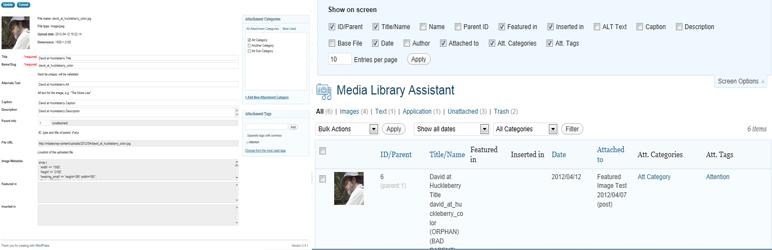
Hover over the item you want to modify and click the “Edit” or “Quick Edit” action. Set the ID portion of the Parent Info field to zero (0), then click “Update” to record your changes. If you change your mind, click “Cancel” to return to the main page without recording any changes. You can also click the “Select” button to bring up a list of posts//pages and select one to be the new parent for the item. The “Set Parent” link in the Media/Assistant submenu table also supports changing the parent and unattaching an item.
Some of the MLA features such as where-used reporting and ALT Text sorting/searching require a lot of database processing. If this is an issue for you, go to the Settings page and adjust the “Where-used database access tuning” settings. For any where-used category you can enable or disable processing. For the “Gallery in” and “MLA Gallery in” you can also choose to update the results on every page load or to cache the results for fifteen minutes between updates. The cache is also flushed automatically when posts, pages or attachments are inserted or updated.
Rest assured, custom templates and all of your option settings persist unchanged whenever you update to a new MLA version. You can also back a backup of your templates and settings from the Settings/Media Library Assistant General tab. Scroll to the bottom of the page and click “Export ALL Settings” to create a backup file. You can create as many files as you like; they are date and time stamped so you can restore the one you want later. In addition, you can deactivate and even delete the plugin without losing the settings. They will be there when you reinstall and activate in the future. You can permanently delete the settings and (optionally) the backup files if you are removing MLA for good. The “Uninstall (Delete)” Plugin Settings section of the General tab enables these options.
Not many, but all of the internationalization work in the plugin source code has been completed and there is a Portable Object Template (.POT) available in the “/languages” directory. I don’t have working knowledge of anything but English, but if you’d like to volunteer to produce a translation, I would be delighted to work with you to make it happen. Have a look at the “MLA Internationalization Guide.pdf” file in the languages directory and get in touch.
All of the MLA source code has been annotated with “DocBlocks”, a special type of comment used by phpDocumentor to generate API documentation. If you’d like a deeper understanding of the code, navigate to the MLA phpDocs web page and have a look. Note that these pages require JavaScript for much of their functionality.

Ratings

4.8
151 reviews

Rating breakdown

Details Information

Version

2.81

First Released

13 Aug, 2012

Total Downloads

928,156

Wordpress Version

3.5.0 or higher

Tested up to:

5.3

Require PHP Version:

5.3 or higher

Tags

Contributors

Languages

DIRECTORY DISCLAIMER

The information provided in this THEME/PLUGIN DIRECTORY is made available for information purposes only, and intended to serve as a resource to enable visitors to select a relevant theme or plugin. wpSocket gives no warranty of any kind, express or implied with regard to the information, including without limitation any warranty that the particular theme or plugin that you select is qualified on your situation.

The information in the individual theme or plugin displayed in the Directory is provided by the owners and contributors themselves. wpSocket gives no warranty as to the accuracy of the information and will not be liable to you for any loss or damage suffered by you as a consequence of your reliance on the information.

Links to respective sites are offered to assist in accessing additional information. The links may be outdated or broken. Connect to outside sites at your own risk. The Theme/Plugin Directory does not endorse the content or accuracy of any listing or external website.

While information is made available, no guarantee is given that the details provided are correct, complete or up-to-date.

wpSocket is not related to the theme or plugin, and also not responsible and expressly disclaims all liability for, damages of any kind, arising out of the use, reference to, or reliance on, any information or business listed throughout our site.

Keep Leading Your Followers!
Share it for them.



