Plugin / Mediator
Mediator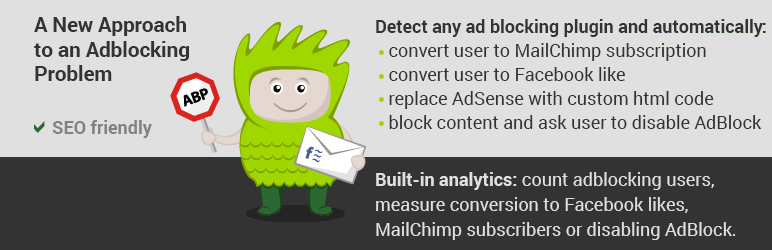
Installation
Installation
Automatic installation
Go to WordPress Plugins menu, click Add New button, search for “Mediator” and click Install Now and Activate it.
Manual installation
Download the plugin as .zip file, then go to WordPress Plugins and click Add New, upload Mediator plugin. Choose zip file with plugin, click on Install Now and Activate it.
Quick start guide video
How to configure it and how it works?
To make plugin working you need to make two steps:
1) After installing and activating plugin the Mediator tab will appear on the left sidebar of your WordPress dashboard. Open it and click ‘Settings’.
There you should paste AdSense or other ad code. Then select alternative content, that will be shown instead of ad, if it will be blocked:
- Showing your adblock visitors MailChimp subscription form. You can use our preset form or customize it with custom CSS class mediator_tech_mailchimp. If you need any help with it please let us know by email [email protected]
- Showing your adblock visitors Facebook like button, button with counts, like box with counts or just standard like button.
- Showing your adblock visitors your custom ads or text. You can use any html code or shortcode here.
- Block content with blurring the content and show visitors our default or custom message asking to disable adblock. You can choose after what number of page show alert image.
After you finish filling out settings, make sure that ‘Enabled’ check box is checked and click ‘Save settings’.
2) Now you can add ad to your website (you need to do it to make plugin working!). There are different ways to do it:
- Embed it using widget (Appearance -> Widgets) to your sidebar or any other areas, supported by your theme.
- Embed it using shortcode to your posts or pages (click on the button with $ sign on toolbar)
- Embed it to php template using following code:
<?php echo do_shortcode( ‘[mediator_tech]’ ); ?> - If you are already using some plugin or built-in theme settings to add AdSense on your website, you can just use [mediator_tech] instead of AdSense code.
In all cases, plugin will try to show an ad. If it will be blocked by any adblocking software, visitor will see chosen alternative content instead of it.
Too see the statistics open Mediator -> Statistics.
Your feedback is more than welcome! Please report if anything goes wrong at [email protected]. We will get back to you ASAP.
Support in English, Spanish and Russian is also available here: http://mediator.tech/wp-support/


Get Started With Free Trial
Explore the offer details: Discover it now



Ratings
Rating breakdown
Details Information
Version
First Released
Total Downloads
Wordpress Version
Tested up to:
Require PHP Version:
Tags
Contributors
Languages
The plugin hasn't been transalated in any language other than English.
DIRECTORY DISCLAIMER
The information provided in this THEME/PLUGIN DIRECTORY is made available for information purposes only, and intended to serve as a resource to enable visitors to select a relevant theme or plugin. wpSocket gives no warranty of any kind, express or implied with regard to the information, including without limitation any warranty that the particular theme or plugin that you select is qualified on your situation.
The information in the individual theme or plugin displayed in the Directory is provided by the owners and contributors themselves. wpSocket gives no warranty as to the accuracy of the information and will not be liable to you for any loss or damage suffered by you as a consequence of your reliance on the information.
Links to respective sites are offered to assist in accessing additional information. The links may be outdated or broken. Connect to outside sites at your own risk. The Theme/Plugin Directory does not endorse the content or accuracy of any listing or external website.
While information is made available, no guarantee is given that the details provided are correct, complete or up-to-date.
wpSocket is not related to the theme or plugin, and also not responsible and expressly disclaims all liability for, damages of any kind, arising out of the use, reference to, or reliance on, any information or business listed throughout our site.