Plugin / LiveSmart Video Chat Live Video Chat
LiveSmart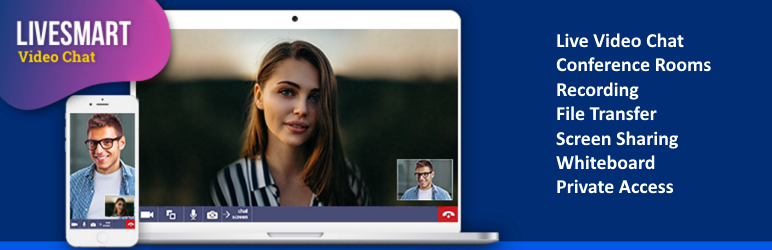
Installation
Installation
How should I setup LiveSmart Video Chat’s WordPress live video button for my site?
Just follow the steps listed below. If at any point you have troubles with the installation don’t hesitate to contact us – we would love to help you out:
1/ Install and activate the plugin
2/ Once you active the plugin on your left panel you will be able to see LiveSmart Video Chat’s plugin settings. Click on them.
3/ Enter the following information in the form:
a/ Server URL : fill in your server URL.
b/ Button CSS – this is the message that appears on our button;
c/ Button Message – The label on the button. Default is “Start Video Chat”. We recommend it to be shorter e.g. Video call me or Video Call George. You can change the front message as you like;
d/ room ID – (optional) this is the private roomId of the agent. When you generate a link, this is the string after room attribute. For example if the link is something like this: pages/room.html?room=2bsdhnz0lvs&isAdmin=1 – copy/paste 2bsdhnz0lvs in the shortcode, [livesmart_widget roomId=”2bsdhnz0lvs”];
e/ names – (optional) names of the agent, that is receiving the calls. You can set this in the Settings page, or in the shortcode as a parameter, for example [livesmart_widget names=”NAME_OF_AGENT”] where NAME_OF_AGENT should be the actual name.
f/ avatar – (optional) URL with an image of the agent. You can set this in the Settings page, or in the shortcode as a parameter, for example [livesmart_widget avatar=”URL_OF_AGENT_AVATAR”] where URL_OF_AGENT_AVATAR should be a valid URL of an image of the agent.
4/ LiveSmart Video Chat button can be positioned on any page you would like:
a/ For a single page – Go to Pages menu on the left panel –> Click the page where you would like to see the button for example About Us –> Click the Classic Editor (if you are using Page Composer) —> Text –> Place [livesmart_widget]. If you want to see the button below your picture, find the corresponding alt tag and place [livesmart_widget] below
b/ For multiple pages e.g.menu, the header, the footer, etc. – Go to Appearance menu on the left panel –> Click Editor –> Open the necessary PHP page e.g. header.php –> Place the following WordPress hook <?php do_action('livesmart_widget'); ?>
5/ After you have set correctly LiveSmart Video Chat and your Database, you can visit the Dashboard menu. There you can track your visitors, add/change agents, add rooms and regular visitors.
The LiveSmart WordPress plugin is available for WP users with capabilities to add pages. In order to login directly to Dashboard, make sure your WP user has the same username as the LiveSmart agent. Default LSV agent has credentials of admin/admin.
6/ Enjoy!
Thanks for using LiveSmart Video Chat 🙂
P.S. If you have any troubles with installation feel free do drop us a line at [email protected]


Get Started With Free Trial
Explore the offer details: Discover it now



Ratings
Rating breakdown
Details Information
Version
First Released
Total Downloads
Wordpress Version
Tested up to:
Require PHP Version:
Tags
Contributors
Languages
The plugin hasn't been transalated in any language other than English.
DIRECTORY DISCLAIMER
The information provided in this THEME/PLUGIN DIRECTORY is made available for information purposes only, and intended to serve as a resource to enable visitors to select a relevant theme or plugin. wpSocket gives no warranty of any kind, express or implied with regard to the information, including without limitation any warranty that the particular theme or plugin that you select is qualified on your situation.
The information in the individual theme or plugin displayed in the Directory is provided by the owners and contributors themselves. wpSocket gives no warranty as to the accuracy of the information and will not be liable to you for any loss or damage suffered by you as a consequence of your reliance on the information.
Links to respective sites are offered to assist in accessing additional information. The links may be outdated or broken. Connect to outside sites at your own risk. The Theme/Plugin Directory does not endorse the content or accuracy of any listing or external website.
While information is made available, no guarantee is given that the details provided are correct, complete or up-to-date.
wpSocket is not related to the theme or plugin, and also not responsible and expressly disclaims all liability for, damages of any kind, arising out of the use, reference to, or reliance on, any information or business listed throughout our site.