Plugin / pagebar
Lutz Schröer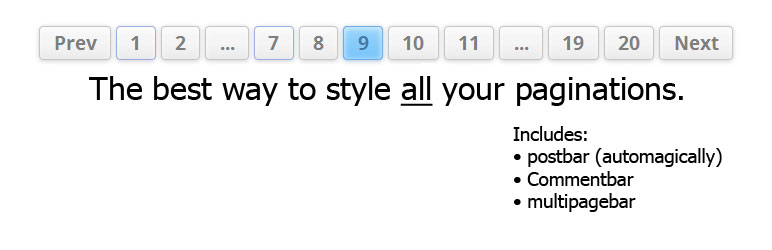
Frequently Asked Questions (FAQ)
' . __('Pages:', 'kubrick') . ' ', 'after' => '
', 'next_or_number' => 'number')); (The code does not have to look necessarily exactly the same, this example is from the WordPress default theme.) Then you can add the multipagebar to your pages: if (function_exists('multipagebar')) multipagebar(); You can customize the display of your multipagebar by editing the settings in the Multipagebar tab on the pagebar option page. Adding pagebar to your paged comments This pagebar can not be added automatically (there is no action indicating the end of the comment loop) so you have to edit the file “comments.php”. If your theme contains the standard navigation for paged comments you first have to delete the following code: (The code does not have to look necessarily exactly the same, this example is from the WordPress default theme.) Then you can add the commentbar to your pages: if (function_exists('commentbar')) commentbar(); Upgrading from earlier versions Important: the old “pagebar()” function has been renamed to “postbar()” since this seems to describe its function better. Nevertheless the old “pagebar()” function is and will be an alias. pagebar v2.5+ introduces a new database structure for its settings. Formerly there was only one entry in “wp_options” called “pagebar”. Since there are now three different pagebars (“postbar”, “commentbar” and “multipagebar”), the options are splitted into three entries (“postbar”, “commentbar” and “multipagebar” respectively). After installation (either through WordPress update or manually per FTP) pagebar copies the settings stored in “pagebar” to the new “postbar” entry and sets “commentbar” and “multipagebar” to inherit the settings so everything should look fine without manual interference. The “commentbar” and “multipagebar” have to be installed manually though.

Get Started With Free Trial
Explore the offer details: Discover it now



Ratings
Rating breakdown
Details Information
Version
First Released
Total Downloads
Wordpress Version
Tested up to:
Require PHP Version:
Tags
Contributors
This plugin has been closed.
Languages
The plugin hasn't been transalated in any language other than English.
DIRECTORY DISCLAIMER
The information provided in this THEME/PLUGIN DIRECTORY is made available for information purposes only, and intended to serve as a resource to enable visitors to select a relevant theme or plugin. wpSocket gives no warranty of any kind, express or implied with regard to the information, including without limitation any warranty that the particular theme or plugin that you select is qualified on your situation.
The information in the individual theme or plugin displayed in the Directory is provided by the owners and contributors themselves. wpSocket gives no warranty as to the accuracy of the information and will not be liable to you for any loss or damage suffered by you as a consequence of your reliance on the information.
Links to respective sites are offered to assist in accessing additional information. The links may be outdated or broken. Connect to outside sites at your own risk. The Theme/Plugin Directory does not endorse the content or accuracy of any listing or external website.
While information is made available, no guarantee is given that the details provided are correct, complete or up-to-date.
wpSocket is not related to the theme or plugin, and also not responsible and expressly disclaims all liability for, damages of any kind, arising out of the use, reference to, or reliance on, any information or business listed throughout our site.