Plugin / Post Slider by 10Web – Responsive Post Slider

10Web
Frequently Asked Questions (FAQ)

Go to Post Slider WordPress > Sliders > Add New. Fill in Slider title and choose the type of slider you want to create: Dynamic Post Slider or Static Posts Slider. On the right upper corner you will see the following buttons: * Save. This will save the changes applied to the slider and redirect you to the list of all created slides. * Apply. This will save the changes applied to the slider and keep you on the same page in admin panel. * Save as Copy. Using this option you can edit post slider and save it as a copy instead of replacing the original post slider. * Cancel. You can cancel any changes made to slider hitting the button.
Press Add Posts button. New window opens displaying Search, post type and category drop-downs. Search. Here you can input a title (full or partial) to search for relevant posts. Using follow-up select field you can narrow your search to specific post type. Post Type. Here you will see the list of WordPress native posts and custom posts created by other plugins,e.g. Calendar plugins, Ecommerce plugins and etc. After selecting a type the list of relevant taxonomies will appear, which can be used for browsing posts, e.g. for WordPress native type posts you will see Category as taxonomy. Full list of the posts corresponding to filters will be visible below. You can select the posts you prefer to add to slider using the checkbox next to their title. As a final step press Add to Slider button. Posts will be added and displayed with their custom images below Slides section. You can change the sequence of the posts using drag and drop (4-pointed arrow). Additionally you can provide titles to slides by clicking on Slide N, which is slide sequential number and providing a title. Hovering over the images you will see a set of three buttons: Edit Post, Duplicate Slide, Delete. Edit Slide. Pressing the button you can replace the original post with another one. Duplicate Slide. Pressing the button you will not only duplicate the slider but its layers. You can further edit and replace the slide keeping all of its layers. Delete. Using the button you can remove the slide
Dynamic Post slider is designed to display posts which fulfill requirements set by filters. The slider posts will be updated when new posts corresponding to filters are added to your site, e.g. if you choose to display posts corresponding to Latest Posts category, newly added posts will be displayed within the slider. The list of filters is the following: Period of posts to display. Set the time for the posts, e.g. if set it to 24 hours it will display the posts added within the last 24 hours. Number of posts. Set the number of posts which will be displayed as slides. If set to 0 or left empty it will display all posts. Choose post type. Select the type for the dynamic posts, e.g. native or custom post types. Author. Select the author whose posts will be displayed within the slider. Sort posts by. Select the option which will be used as a sorting basis while displaying posts. Order posts by. Set the ordering sequence for the posts- ascending or descending. Post taxonomies. Here all available taxonomies will be displayed relevant for that specific type of posts. You can use drop-downs to narrow the selection.
In Pro version of Post Slider, there are 4 types of layers that can be added slides: Text, Image, Social Button and Hotspot. You can add multiple layers to each slide: layers can be of same type or different.The layers can be duplicated by pressing “Duplicate button” next to the “Close” button. In this case the duplicated layer will appear as the last positioned layer and can be further customized. Text Layer will allow adding custom text and all post-related parameters, e.g. author, post title, content, type and etc. Dimensions. Provide text layer height and width. Position. Either drag and drop the layer over the slide or use x and y axis values for positioning it. Size. Set font size for text layer. Color. Set font color for text layer. Font family. Set font family for text layer. This option can be enhanced if you add font family in Settings>General Options. Font weight. If you want to add additional styling to your text, e.g. make it bold, use this option. Published. Choose whether to publish the layer or not. Effect in. Select the effect which will be used when layer appears over the slide. Effect out. Select the effect which will be used when layer disappears from the slide. Padding. Using CSS values set padding for text within the layer. Background Color. Set a color which will used as a background color for the text layer. Transparency. Set transparency level for the image between 0 and 100, where 100 corresponds to full transparency. Border. Using CSS values set a border for text layer. Radius. Using CSS values set radius for text layer. Shadow. Using CSS values set shadow for image layer. Image Layer will allow adding an image over the slider post. Please note that in case of dynamic posts you can only choose one image that will be displayed with all post slides, whereas with static post slider you can set different images. Dimensions. Provide image layer height and width. To avoid distortion make sure those correspond to initial dimension of the image. Alt. Fill in HTML attribute specified in the IMG tag. Link. Fill in link to which user will be redirected upon hitting the layer, e.g. http://www.example.com. Position. Either drag and drop the layer over the slide or use x and y axis values for positioning it. Transparency. Set transparency level for the image between 0 and 100, where 100 corresponds to full transparency. Published. Choose whether to publish the layer or not. Effect in. Select the effect which will be used when layer appears over the slide. Effect out. Select the effect which will be used when layer disappears from the slide. Border. Using CSS values set a border for image layer. Radius. Using CSS values set radius for image layer. Shadow. Using CSS values set shadow for image layer.
This feature is available in Post Slider Pro. You can select social sharing buttons which will allow sharing the slide. The list includes Facebook, Tumblr, Twitter, Pinterest and Google+. Position. Either drag and drop the layer over the slide or use x and y axis values for positioning it. Social button. Using drop-down choose social sharing button to use as a layer. Size. Define the size of social sharing button. Transparency. Set transparency level for the image between 0 and 100, where 100 corresponds to full transparency. Published. Choose whether to publish the layer or not. Effect in. Select the effect which will be used when layer appears over the slide. Effect out. Select the effect which will be used when layer disappears from the slide. Color. Choose button color for the social sharing button. Hover color. Choose button color for the social sharing button when hovered.
Hotspot layer is available in Post Slider Pro version. It will allow displaying a hotspot icon over the slide and displaying content when hovered over this icon. Text. Provide a text which will be displayed as hotspot pop-up. Dimensions. Provide dimensions for hotspot pop-up window. Position. Either drag and drop the layer over the slide or use x and y axis values for positioning it. Link. Fill in link to which user will be redirected upon hitting the layer, e.g. http://www.example.com. Hotspot text position. Select a positioning for hotspot pop-up text. Hotspot Width. Define the width for the hotspot icon. Hotspot Background Color. Set a background color for hotspot icon. Hotspot Border. Using CSS values set a border for hotspot. Hotspot Radius. Using CSS values set radius for hotspot. Published. Choose whether to publish the layer or not. Effect in. Select the effect which will be used when layer appears over the slide. Effect out. Select the effect which will be used when layer disappears from the slide. Padding. Using CSS values set padding for text within the layer. Size. Define font size for hotspot pop-up text. Color. Select font color for hotspot pop-up text. Font family. Set font family for text layer. This option can be enhanced if you add font family in Settings>General Options. Font weight. If you want to add additional styling to your text, e.g. make it bold, use this option. Background Color. Transparent. Set transparency level for the image between 0 and 100, where 100 corresponds to full transparency. Border. Using CSS values set a border for overall hotspot layer. Radius. Using CSS values set radius for overall hotspot layer. Shadow. Using CSS values set shadow for overall hotspot layer.
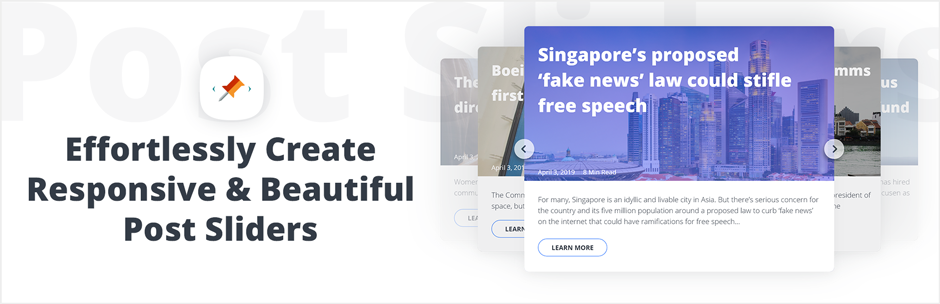
If you want to make major changes applicable to entire slider go to Post Slider WD > Sliders > Settings tab. Global Settings. You can change the main settings here. The changes will affect only the current slider. Carousel. Carousel view displays a larger centered image with descending size images on both sides. Navigation. Navigation button styles, colors and size can be adjusted. In addition you can completely disable navigation buttons. Bullets. Bullets can also be used as navigation option. Clicking bullet you will open up the slider in corresponding position. Filmstrip. You can add a filmstrip which will display featured images of those posts used with slider. Timer Bar. You can add a bar displaying the timing left to switching to the next slide. This is commonly used when using autoplay option. CSS. If you want to add additional styling to sliders you can write down CSS within the box below. These changes will overwrite the original styles.
Inserting post slider into a Page or a Post: You can insert post sliders into pages or posts. Open the post/page. Here you will see “Insert Slider” button with a Slider icon. Press the button, Select the slider and press Insert. In addition, you can insert the shortcode manually. The corresponding shortcode is displayed next to the created slider in Post Slider WD > Sliders section under Shortcode column. Adding post slider to theme using PHP function: This feature is commonly used while displaying slider within header/footer position. The function can be found at Post Slider WD>Sliders section within PHP function column. Adding post slider as a widget: Go to Appearance > Widgets > Post Slider. Select a position for post slider widget and press Save button. Provide a title for the slider and choose post slider using drop-down list.

Ratings

4.6
39 reviews

Rating breakdown

Details Information

Version

1.0.59

First Released

18 Sep, 2010

Total Downloads

172,206

Wordpress Version

3.9 or higher

Tested up to:

5.2.4

Require PHP Version:

-

Tags

Contributors

Languages

The plugin hasn't been transalated in any language other than English.

DIRECTORY DISCLAIMER

The information provided in this THEME/PLUGIN DIRECTORY is made available for information purposes only, and intended to serve as a resource to enable visitors to select a relevant theme or plugin. wpSocket gives no warranty of any kind, express or implied with regard to the information, including without limitation any warranty that the particular theme or plugin that you select is qualified on your situation.

The information in the individual theme or plugin displayed in the Directory is provided by the owners and contributors themselves. wpSocket gives no warranty as to the accuracy of the information and will not be liable to you for any loss or damage suffered by you as a consequence of your reliance on the information.

Links to respective sites are offered to assist in accessing additional information. The links may be outdated or broken. Connect to outside sites at your own risk. The Theme/Plugin Directory does not endorse the content or accuracy of any listing or external website.

While information is made available, no guarantee is given that the details provided are correct, complete or up-to-date.

wpSocket is not related to the theme or plugin, and also not responsible and expressly disclaims all liability for, damages of any kind, arising out of the use, reference to, or reliance on, any information or business listed throughout our site.

Keep Leading Your Followers!
Share it for them.



