Plugin / Five Star Restaurant Reservations
FiveStarPlugins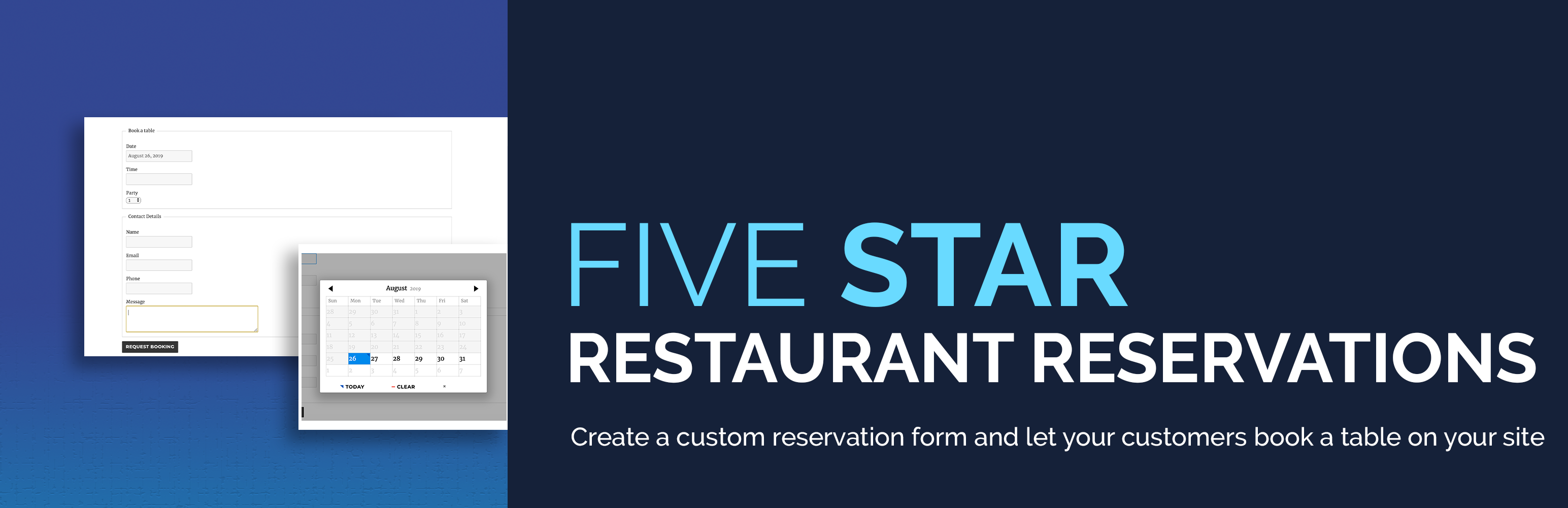
Installation
Installation
- Upload the ‘restaurant-reservations’ folder to the ‘/wp-content/plugins/’ directory
- Activate the plugin through the ‘Plugins’ menu in WordPress
or
- Go to the ‘Plugins’ menu in WordPress and click ‘Add New’
- Search for ‘Five Star Restaurant Reservations’ and select ‘Install Now’
- Activate the plugin when prompted
Getting Started
-
To place your restaurant booking form on a page:
- Option 1: Go to the ‘General’ tab in the plugin settings and use the Booking Page dropdown to select the page on which you want your reservation form to appear.
- Option 2: Place the included reservations Gutenberg block on the page on which you want your reservation form to appear.
- Option 3: Place the [booking-form] shortcode on the page on which you want your reservation form to appear.
-
To customize the form:
- Go to the Settings area of the plugin admin and click the ‘General’ tab. There you’ll be able to set the min and max party size, the successful booking message, the date and time format and make use of our security and privacy features.
- Also in the Settings area, go to the ‘Booking Schedule’ tab. There you’ll be able to set your restaurant’s schedule, the interval between booking slots, earliest and latest bookings and also create exceptions for the schedule.
-
To set up notifications.
- Go to the ‘Notifications’ tab in the settings.
- Use the Subject and Email fields there to craft your message for each different circumstance
- There is also a list of template tags there that you can include in your messages to display reservation-specific messages about the table reserved.
-
To view and manage your bookings:
- Go to the ‘Bookings’ area of the plugin admin.
- There you’ll be able to view and modify any bookings that have been placed on your site.
- You’ll also be able to manually create a new restaurant reservation (e.g. a reservation you took over the phone).
For a list of specific features, see the Restaurant Menu description page here: https://wordpress.org/plugins/restaurant-reservations/.
For help and support, please see:
- Our FAQ page, here: https://wordpress.org/plugins/restaurant-reservations/faq/
- Our documentation and user guide, here: http://doc.fivestarplugins.com/plugins/restaurant-reservations/?utm_source=Plugin&utm_medium=Plugin%20Description&utm_campaign=Restaurant%20Reservations
- The Restaurant Menu support forum, here: https://wordpress.org/support/plugin/restaurant-reservations/


Get Started With Free Trial
Explore the offer details: Discover it now



Ratings
Rating breakdown
Details Information
Version
First Released
Total Downloads
Wordpress Version
Tested up to:
Require PHP Version:
Tags
Contributors
Languages
DIRECTORY DISCLAIMER
The information provided in this THEME/PLUGIN DIRECTORY is made available for information purposes only, and intended to serve as a resource to enable visitors to select a relevant theme or plugin. wpSocket gives no warranty of any kind, express or implied with regard to the information, including without limitation any warranty that the particular theme or plugin that you select is qualified on your situation.
The information in the individual theme or plugin displayed in the Directory is provided by the owners and contributors themselves. wpSocket gives no warranty as to the accuracy of the information and will not be liable to you for any loss or damage suffered by you as a consequence of your reliance on the information.
Links to respective sites are offered to assist in accessing additional information. The links may be outdated or broken. Connect to outside sites at your own risk. The Theme/Plugin Directory does not endorse the content or accuracy of any listing or external website.
While information is made available, no guarantee is given that the details provided are correct, complete or up-to-date.
wpSocket is not related to the theme or plugin, and also not responsible and expressly disclaims all liability for, damages of any kind, arising out of the use, reference to, or reliance on, any information or business listed throughout our site.