Plugin / Tweeple

Theme Blvd
Frequently Asked Questions (FAQ)

Upload tweeple folder to the /wp-content/plugins/ directory Activate the plugin through the ‘Plugins’ menu in WordPress Go to Tools > Tweeple to setup your Twitter API authentication and mange your Twitter feeds. NOTE: This plugin does NOT require a theme with Theme Blvd framework. This is a plugin for all tweeple! Usage Once you’ve setup your Twitter API authentication settings (see FAQ), and created a Twitter feed, there are two ways to display a Twitter feed on the frontend of your website. Shortcode: You can use the [tweeple_feed] shortcode like this: [tweeple_feed id="123"] Widget: From Appearance > Widgets, use the “Tweeple Twitter Feed” widget in one of your sidebars.
This is sort of a pain, but as of June 2013, in order to access Twitter API from your website, you need to setup credentials with Twitter. The general concept is that you’ll need to create what Twitter calls a “developer application.” Think of your WordPress website as the “application” — Once you have these credentials setup for your site, you’ll have full access to use Tweeple to pull from Twitter API.
After installing Tweeple, in your WordPress admin, go to Tools > Tweeple > Authentication and you’ll find your Twitter API application settings. To create your “application,” login to Twitter, and go to: https://dev.twitter.com/apps Create an application, and then create a user token for that application. After you’re done, you’ll need to put in the following information to Tweeple at WP Admin > Tools > Tweeple > Authentication: API key — formerly “Consumer key” API secret — formerly “Consumer secret” Access token Access secret
Nope. The Twitter account you create your developer application with doesn’t really matter. Once you have your authorization credentials setup, you’ll be able to use Tweeple to pull tweets from any public Twitter account, list, or search.
This is because of caching. Tweeple stores the information retrieved from Twitter in your WordPress database for a certain amount of time, before going back to Twitter to update the information.
In the process of pulling from Twitter API for your website, caching is crucial. It is a big process for your web server to go out and pull from Twitter. So, you don’t want Tweeple pulling from Twitter every time someone visits your website. Additionally, Twitter API has rate limits. So, in theory, if you had consistent traffic coming to your website and your server could handle pulling from Twitter on every page load without exploding, Twitter API would keep cutting your server’s IP address off.
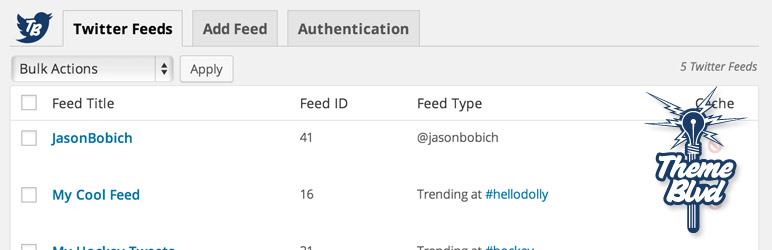
Yup! Let’s say you’ve just posted a breaking Tweet that’s really important and you want your website visitors to see it right away. — Just go to WP Admin > Tools > Tweeple > Twitter Feeds and click the button to clear a specific Twitter feed’s cache. After this, the next visitor to your website will trigger Tweeple to go out to Twitter and pull the latest tweets to be stored in the cache again. Also note that any time you update a Twitter feed’s settings, the feed’s cache is cleared automatically.
Yup. When editing any Twitter feed at WP Admin > Tools > Tweeple, you can change the cache time seconds under “Performance.” Our recommended, and default, setting for this is 7200 seconds (i.e. 2 hours). Note: We have safeguard implemented that does not allow you to set this less than 60 seconds. If you’re a developer and you know what you’re doing, you can change this limit with the filter “tweeple_cache_time_minimum”.

Ratings

5
8 reviews

Rating breakdown

Details Information

Version

0.9.5

First Released

10 Dec, 2015

Total Downloads

66,329

Wordpress Version

-

Tested up to:

4.9.12

Require PHP Version:

-

Tags

Contributors

Languages

The plugin hasn't been transalated in any language other than English.

DIRECTORY DISCLAIMER

The information provided in this THEME/PLUGIN DIRECTORY is made available for information purposes only, and intended to serve as a resource to enable visitors to select a relevant theme or plugin. wpSocket gives no warranty of any kind, express or implied with regard to the information, including without limitation any warranty that the particular theme or plugin that you select is qualified on your situation.

The information in the individual theme or plugin displayed in the Directory is provided by the owners and contributors themselves. wpSocket gives no warranty as to the accuracy of the information and will not be liable to you for any loss or damage suffered by you as a consequence of your reliance on the information.

Links to respective sites are offered to assist in accessing additional information. The links may be outdated or broken. Connect to outside sites at your own risk. The Theme/Plugin Directory does not endorse the content or accuracy of any listing or external website.

While information is made available, no guarantee is given that the details provided are correct, complete or up-to-date.

wpSocket is not related to the theme or plugin, and also not responsible and expressly disclaims all liability for, damages of any kind, arising out of the use, reference to, or reliance on, any information or business listed throughout our site.

Keep Leading Your Followers!
Share it for them.



