Plugin / 10Web Social Photo Feed

10Web
Frequently Asked Questions (FAQ)

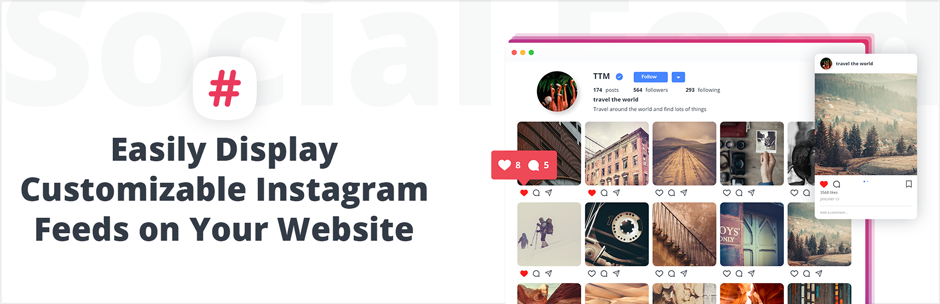
WordPress Instagram Feed is a user-friendly plugin with enhanced functionality, which lets you create and showcase Instagram feeds on your WordPress website. You can build multiple feeds with the media of your Instagram account or hashtag by completing just a few simple steps. You will need a couple of minutes to incorporate Instagram API to your website. The plugin will automatically create a feed from your Instagram profile. Additionally, you can build Instagram feeds and show posts of your username, as well as hashtags. Customize the features of the feeds by configuring advanced settings of Instagram Feed plugin. Its user-friendly tools and features allow you fully personalize your feeds, set up conditional filters for feed username and hashtags, modify image lightbox settings and more. Control the appearance and layout of your Instagram feed using 4 outstanding layout types and theme options of Instagram Feed plugin. You can publish the feeds with one of the following layouts: Thumbnails, Masonry, Blog Style, Image Browser. Furthermore, its lightbox feature allows you to also display the images as a beautiful image slider in a popup. The themes of Instagram Feed plugin let you modify each and every attribute of the feeds. With Instagram Feed plugin, you can showcase photos and videos, share wonderful food and travel blog pictures of Instagram with your website visitors. In case you use Instagram for e-commerce, this is the best Instagram plugin to engage your social network followers to your website. The plugin is designed with mobile-friendly layout, letting you provide great user experience on any screen size or device.
To begin creating feeds with WordPress Instagram Feed plugin, you need to configure Instagram app for website and get Instagram Access Token first. This is a very simple process. Visit Instagram Feed > Settings page from WordPress administrative dashboard to start the setup. Press Sign in with Instagram button. In case you are logged in to Instagram.com from your web browser, Access Token and Username fields will be automatically filled in. Otherwise, if there are no logged in users, a popup will appear letting you sign in. To use a different Instagram account, simply press Reset access token and username button. Afterwards, you can sign out from Instagram.com, and get access token for another Instagram user by logging in again. This is all you need to do, to be able to embed Instagram gallery to your WordPress website. You can then display your Instagram photos and videos as a responsive carousel, as widgets on the sidebar or footer of your site, and more. As soon as you sign in to Instagram and get Access Token, a sample feed is created with your account and placed on a private page of your WordPress website. You can view your Instagram image gallery by clicking on View your feed button, or modify its settings and appearance by pressing Edit your feed. The feed will also appear on Instagram Feed > Feeds page. Note, that this feed is not visible to website visitors, unless you edit its page and make it public.
To begin creating your first feed, navigate to Feeds page of Instagram Feed plugin. This page of our Instagram HTML plugin contains a list of all your feeds created with the plugin. You will see the feed of your Instagram timeline appearing on this list. Press Add New button to start building your feed and import Instagram posts to your WordPress website. Firstly, make sure to set a Feed Title for your feed. Then, let’s configure the mandatory settings which are necessary for displaying the feed. Click on Media bar to expand these options. Use Feed Media drop-down box to choose the content of your Instagram feed. Feed Usernames and Hashtags option lets you input your Instagram username and display feeds containing images and videos of your account. You can also add hashtags and showcase your posts with those hashtags. Write the usernames without the @ sign, however for hashtags, you do need to add # at the beginning. While using this Instagram media importer tool, make sure to specify one username or hashtag at a time, and press Add button each time. You can customize the sorting of the media on your feed using the following settings. Sort Media By allows you to choose the parameter, based on which the photos and videos on your Instagram feed will be ordered. You can select one of the following: Date, Likes, Comments, Random. Sorting Order option lets you specify the direction of ordering the Instagram media on your feed. It can have one of the following two values: Ascending, Descending. Media section of feed settings also allows you to change the action which takes place after users click on an image. With Action OnClick option, Instagram Feed plugin provides 4 functions for this: Open Lightbox. Clicking on a post will open a popup box with the large version of the image or video, letting you navigate through the rest of your feed media just like a slider. Redirect To Instagram. This option will redirect users to the same post on Instagram when they click on an item in the feed. Custom Redirect. Select this option and specify a link in Redirect URL input box. Users will be taken to this page after clicking on a post in the feed. Do Nothing. Clicking on posts of the feed will not trigger any functions.
Yes, you can add as many Instagram feeds as you want to your website and show them on posts and pages. Add the Instagram feeds to posts and pages by using the shortcode provided or choosing from the list by clicking on the Instagram Feed button.
Instagram Feed plugin provides 4 beautiful layouts, which you can use to showcase the photos and videos on your Instagram feeds. Each of them can be fully personalized to fit the style of your website. Use Select Layout option and choose the appearance: Thumbnails, Masonry, Blog Style, Image Browser. Let’s go through all 4 layouts and help you choose the one that suits your site the best. Thumbnails Layout Thumbnails Layout of Instagram Feed plugin provides an equally aligned beautiful Instagram grid, consisting of the thumbnail images of the media on your feed. All thumbnails on this layout are set to have the same dimensions, and you can assign the width and height you like. Masonry Layout Just like Thumbnails, Masonry Layout is also built with the thumbnail images of Instagram posts. However, its Instagram grid is not aligned equally. The thumbnail images are created as the exact miniatures of their large versions (i.e. the dimensions of thumbnails and large posts are proportional). Blog Style Layout Blog Style Layout is a perfect choice if you want to post a media file on Instagram and repost the content to WordPress website as a photo blog. The images are displayed with larger dimensions, than on Thumbnails and Masonry Layouts. You can enable captions, descriptions, and hashtags of the media and show them below the posts on your feed. Image Browser Layout Just like Blog Style, Image Browser Layout of Instagram Feed plugin also displays the posts with larger dimensions. However, this layout shows a single large image with navigation buttons, similar to a slideshow. You can navigate through the posts by clicking on Next and Previous buttons.
Instagram Feed social plugin comes with a number of advanced customization options, which you can use to change the functionality and features of your feeds. You can modify the feed as far as: changing its pagination and loading, defining the number of displayed and newly loaded posts, personalizing the settings of all 4 layouts, controlling the sort order of the media on your Instagram feed, choosing the attributes to showcase with the feed, and much more. To begin configuring these options, edit your feed and open Feed Settings tab. Scroll down a bit to find the following two sections: Layout and Pagination, Advanced. Let’s go through each section and discuss every option individually. Layout and Pagination New Media Loading. Select the method to use while loading more images and videos on your Instagram feed. You can choose one of the following options: Pagination, Load More Button, Infinite Scroll, None. Number of Columns. Set the number of columns which will be used to align Instagram media in Thumbnails and Masonry feeds. Number of Images/Videos. Specify the number of Instagram media to display when the feed is loaded initially. Number of New Media. Set the number of posts which will be added to the feed, after the user clicks on Load More button or triggers Infinite Scroll. Combine and Sort Again After Loading More. If this option is enabled, both newly loaded and existing media are mixed then resorted together according to Sort Media By setting. Make Layout Not Responsive. When this option is selected, the layout of the feed does not convert to single-column display on small screens. The feed width is shrunk, but the number of columns stays the same. Number of Media for Initial Preload. Specify the number of posts to preload, when an Instagram feed is first loaded. This option helps to load a few posts at once, then navigate through the media smoothly. Note, that this setting applies to Image Browser feeds only. Number of Media for Pagination Preload. Set the number of posts to preload, while the user navigates through the media by clicking on Next or Previous buttons. Note, that this option is applicable to Image Browser layout only. Advanced Theme. Select the theme which will be used to style the appearance of your Instagram feed. You can edit the theme or create a new one from Instagram Feed > Themes page. Feed Media Resolution. Choose the resolution of the media on your Instagram feed. You can select one of the following options: Optimal, Standard (640 pixels), Low (320 pixels), Thumbnail (150 pixels). In case Optimal is selected, the dimensions of the loaded media are calculated according to the width of feed container. This provides fast loading and no stretching images. Featured Image. Set the featured image of the header section of your Instagram feed. The image is pulled from the user profile or hashtag you select. Show Feed Header. Activate this option to display a header on your Instagram feed. It includes Feed Title and Featured Image you specified. Show User Data. If this option is enabled, additional details from the selected accounts and hashtags will be displayed on your Instagram feed. You can activate: Follow On Instagram button, Number of Posts and Followers of Instagram account/hashtag, User Bio of your Instagram account. Show Media Caption. Enable this setting to display descriptions of Instagram photos or videos below them, fully or partially. Show Full Description. Activate this setting to show the full captions of Instagram media. Note that this option only applies to feeds with Masonry layout. Show Number of Likes. Mark this option as checked to display the number of likes on each Instagram post. Show Number of Comments. Display the number of comments on Instagram photos or videos with your feed. Show Username On Image Thumb. Activating this setting will let you show your Instagram account username on the images or videos of your feed.
Instagram Feed plugin comes with a popup box, which appears when users click on a photo or a video in the feed. It lets them display the larger versions of Instagram media, as well as play videos and navigate through the posts. To run the lightbox by clicking on the media, make sure Action OnClick option of Feed Settings tab is set to Open Lightbox. Just like other attributes of Instagram feeds, Lightbox Settings can be personalized as well. Edit your feed, then navigate to Lightbox Settings tab. Here you will find all the tools which help you tweak the features of the lightbox. The user-friendly lightbox options are divided into the following two main sections: General Settings, Advanced Settings. Let’s discuss these two sections and discover the benefits of the options they provide. General General section of Lightbox Settings mainly provides options to modify the dimensions and effects on the popup box. You are able to make the following changes: set the dimensions of the lightbox, configure autoplay and choose from 14 amazing animation effects, activate full-width lightbox, and more. Advanced With Advanced section of Lightbox settings, you have full control of what’s shown with the popup pox of Instagram feed images and videos. It takes just a few steps to get the appearance of the lightbox exactly as you wish to have it. Lightbox Advanced options allow you to: add a filmstrip to the lightbox, containing the thumbnails of Instagram posts, customize the navigation on the lightbox, adding Next and Previous buttons, activate image captions and display them on the image, enable right-click protection, and thus disallow right-click on images and videos, place share, fullscreen, download and other control buttons, add comments section to the lightbox, and much more.
This option is available in Premium version. There, you can create mixed Instagram feeds with your Instagram account and several hashtags. You can even create the combination of both.
If you are seeing this alert message on your Instagram Feed plugin, please note, that Instagram access tokens expire from time to time. Therefore you need to get new from your Instagram account again. Please sign in to your Instagram account and get a new token. Add it to Instagram Feed > Settings page. If the token will still cause “Invalid access token” error, revoke access for the plugin here and sign in again from Settings page.
You can definitely do this with premium version! In case you wish to showcase Instagram feeds with additional, more definitive filters, Conditional Filters feature of Instagram Feed plugin will help you with it. This functionality allows you to show images of your Instagram account with a specific hashtag, skip images which belong to certain hashtags, and more. To begin creating additional filters for your Instagram feed, edit it and navigate to Conditional Filters tab. Use Enable Conditional Filters to activate the necessary tools. Feeds to Filter option shows the basis for conditional filters. These are the username and hashtags you have added to your Instagram feed. The filters will search among the posts of the username and hashtags, and pull those which fulfill the specified condition. Now let’s configure the condition itself. First, you need to choose the logical operator of the condition using Filter Logic setting. Select one of the following 3 operators: AND: Shows Instagram posts that belong to all sources of filtering. OR: Shows Instagram media which belong to at least one of the sources of filtering. NOR: Hides Instagram posts which belong to at least one of the sources of filtering. Afterwards, use Add Condition option to specify the parameter for the condition, which can be one of the following. Hashtag. If you wish to filter your accout feed with a certain hashtag, you can use this option. Mention. This option can be used for feeds both with hashtags and username, i.e. you can display posts where another user is mentioned. Description. Just like Mentions, Description can be used both with hashtags and username. You can specify a single keyword or a phrase, which is used in descriptions of your Instagram posts. Instagram Media Link. You are able to filter using the shareable link of Instagram media. Simply provide the full URL of the post, as the following example: https://www.instagram.com/p/Be6H6G9lmCQ/ Afterwards, select the Condition Type for the filter, which corresponds to the parameter you are adding. For instance, in case you are adding #liveauthentic hashtag, the Condition Type needs to be set as Hashtag as well. Lastly, click Add Condition button, and the parameters you have added will be visible below Result section. Make sure to press Save after you finish configuring the filters. With Result option, you will see all of the added filters which will be applied to your Instagram feed.This feature is widely used on Instagram for eCommerce websites, as it serves like an Instagram feed with analytics.
Using WordPress Instagram feed plugin, you can publish your feeds with the following 3 different methods: on a WordPress page or post, as a widget, on a custom template with a PHP function. A quick guide for this is provided with How To Publish Feed tab above your Instagram feed. Let’s go through the necessary steps of each publishing method, and help you choose the one that fits your site the best. Publishing the Feed on Pages or Posts To publish Instagram feeds with this method, add or edit the page or post from WordPress administrative dashboard of your website. Click on Add Instagram Feed button from the top of the post editor. Afterwards, select the feed you wish to publish and press Insert. The shortcode of Instagram Feed plugin will be added to the content of your page/post. Alternatively, you can copy the shortcode from Instagram Feed > Feeds dashboard, under Shortcode column, and paste it into the content of your WordPress page/post. Publishing Instagram Feed as a Widget Navigate to Appearance > Widgets page from WordPress administrative dashboard to begin configuring your Instagram feed widget. Firstly, search for Instagram Feed Widget and drag it to the widget area, where you wish to display your feed. Provide a Title for your Instagram Feed, then choose the feed to publish using Feed drop-down box. Make sure to specify Number of Columns, as well as Number of images to show on your Instagram feed. Also, you can activate the following attributes and display them with your feed: post descriptions, likes and comments, Load More button. Publishing with PHP function It is also possible to publish Instagram feeds on custom PHP templates using their PHP functions. To do this, simply copy the PHP function of your feed from Instagram Feed > Feeds page, then paste it to the necessary section of your custom template.
This is possible in Premium version. Instagram Feed plugin provides a variety of user-friendly styling options, which let you customize the appearance and features of your Instagram feed even further. You can access these tools from Instagram Feed > Themes page. By default, Instagram Feed plugin comes with 2 themes: Instagram, Elegant. You can modify and use them on your feeds, or create a new theme with your own configurations. To select a default theme for your Instagram feeds, click on the star icon next to the corresponding entry. Each theme is divided into 2 main sections. Customizing Feed These theme settings allow you to modify global styling of your feeds, such as their width, text font, pagination attributes and more. This toolbox consists of the following sub-sections: General. Configure the main parameters of the feed with these options, e.g. feed container width and background color. Header. Edit header parameters, its text font styles, image size, padding and other attributes. User Data. Set the appearance of user information section above the feeds, such as text font size, and the styling of follow button and user bio. Pagination. Modify the styles of Load More button, as well as the font size, margins, and alignment of Pagination buttons. Thumbnails, Masonry, Blog Style and Image Browser. Use the options on these tabs to modify default styles of layouts provided by Instagram Feed plugin. You can edit the border and padding of photo wrapper, text color and font of post caption, comments and likes, transparency of image overlay, and more. Customizing Lightbox You can customize each attribute of Instagram Feed lightbox using the tools in this section. They will help you change lightbox background, control button styles, filmstrip position and alignment, and more. Navigate through the following sub-sections to change the options: General, Control Buttons, Close Button, Navigation Buttons, Filmstrip, Info, Comments.
Advanced Options of Instagram Feed plugin allow you to modify a few global parameters, that apply to all feeds. Go to Instagram Feed > Settings page and click on Advanced Options bar to expand this toolbox. With Minimal role to add and manage Feeds or Themes option, you can select the WordPress user role which will have access to Instagram Feed plugin. The user roles of higher levels will also be able to modify and manage the feeds. Custom CSS lets you write your own CSS code for your Instagram feeds. This is handy, in case you need to make specific changes regarding the styling of your feed. Whereas with Custom Javascript you are able to apply additional scripts. For instance, let’s consider you have a feed with Thumbnails Layout, and besides displaying the feed, you wish to expand captions for some posts. You can achieve this the following way. Firstly, you need to assign custom wdi_feed_loaded event of the plugin to the container of the Instagram feed, then set callback function for this event. Here is an example of a script, which expands captions of posts with 0, 1, 2, 3 indexes: jQuery('#wdi_feed_0').on('wdi_feed_loaded',function(){ jQuery('.wdi_photo_title').eq(0).trigger('click'); jQuery('.wdi_photo_title').eq(1).trigger('click'); jQuery('.wdi_photo_title').eq(2).trigger('click'); jQuery('.wdi_photo_title').eq(3).trigger('click'); }); Make sure to Save Changes after you finish modifying Advanced Options. Uninstalling Instagram Feed Plugin In case you wish to completely remove Instagram Feed plugin, you can Uninstall it using Instagram Feed > Uninstall menu item. However, it is important to note, that uninstalling the plugin will delete all feeds, reset all options to their defaults, and remove other data on the plugin. Please make sure you don’t have any important information before you proceed.

Ratings

4.7
302 reviews

Rating breakdown

Details Information

Version

1.3.22

First Released

13 Sep, 2016

Total Downloads

1,994,328

Wordpress Version

3.9 or higher

Tested up to:

5.3

Require PHP Version:

5.2 or higher

Tags

Contributors

Languages

The plugin hasn't been transalated in any language other than English.

DIRECTORY DISCLAIMER

The information provided in this THEME/PLUGIN DIRECTORY is made available for information purposes only, and intended to serve as a resource to enable visitors to select a relevant theme or plugin. wpSocket gives no warranty of any kind, express or implied with regard to the information, including without limitation any warranty that the particular theme or plugin that you select is qualified on your situation.

The information in the individual theme or plugin displayed in the Directory is provided by the owners and contributors themselves. wpSocket gives no warranty as to the accuracy of the information and will not be liable to you for any loss or damage suffered by you as a consequence of your reliance on the information.

Links to respective sites are offered to assist in accessing additional information. The links may be outdated or broken. Connect to outside sites at your own risk. The Theme/Plugin Directory does not endorse the content or accuracy of any listing or external website.

While information is made available, no guarantee is given that the details provided are correct, complete or up-to-date.

wpSocket is not related to the theme or plugin, and also not responsible and expressly disclaims all liability for, damages of any kind, arising out of the use, reference to, or reliance on, any information or business listed throughout our site.

Keep Leading Your Followers!
Share it for them.



