Plugin / WooCommerce Bulk Discount

Rene Puchinger
Frequently Asked Questions (FAQ)

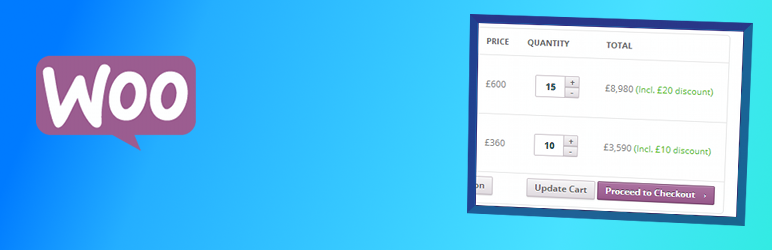
Download the latest version and extract it in the /wp-content/plugins/ directory Activate the plugin through the ‘Plugins’ menu in WordPress Once the plugin is activated, you can use it as follows: First navigate to WooCommerce settings. Under the Bulk Discount tab, find the global configuration for bulk discounts. Make sure “Bulk Discount enabled” is checked and optionally fill information about discounts which will be visible on the cart page. You can include HTML markup in the text – you can, for instance, include a link to your page with your discount policy. Since version 2.0 you may choose to use a flat discount applied to the cart item subtotal. Optionally you may also modify the CSS styles for the old value and the new value which is displayed in the cart. Save the settings. If you want to set the discount individually per product then navigate to Products and choose a product for which you want to create a discount policy. In the Product Data panel, click Bulk Discount and optionally fill information about the discount which will be visible in the product description. If you want to set the discount policy globally for all products, just create a private product with the title ‘wc_bulk_discount_configurer’ (without quotes). In the bulk discount section of this private product set the discount as in the case of any individual product (see step 3). Click “Add discount line” button to create a policy. Quantity (min.) means minimal number of ordered items so that the (second textbox) Discount applies. It is possible to add up to five discount lines to fine-tune the discount setting.
Yes, multiple discounts (related to a single product) are supported. Currently it is possible to set up to 5 discount lines. That should be enough for reasonable fine-tuning of the discount.
Since version 2.0 another type of discount is added, allowing you to set a flat discount in currency units for the cart item subtotal. Since version 2.4.2 you can add a fixed discount type which is a bit different than the flat discount type – see below for examples.
Yes. Since version 2.0, this feature has been implemented.
Yes, in case you have several product variations in your store and you need to apply the discount to all the purchased variations, please upgrade to the latest version of Bulk Discount. This functionality can be disabled in Bulk Discount settings.
Yes, the plugin supports localization files. You can add support for your language as well by the standard process.
Sure. Below is an example of setting a bulk discount for a product with three discount lines. Quantity (min.) = 3, Discount (%) = 5 Quantity (min.) = 8, Discount (%) = 10 Quantity (min.) = 15, Discount (%) = 15 If the customer orders, say, 12 items of the product which costs $15 per item, the second discount line will apply. The customer then pays 12 * 15 = 225 dollars in total minus 10%, which yields $202.5. Note that this discount policy only applies to the concrete product — other products may have their own (possibly different) discount policies.
Example for flat discount follows: Quantity (min.) = 10, Discount ($) = 10 Quantity (min.) = 30, Discount ($) = 20 If the customer orders, say, 15 items of the product which costs $10 per item, the first discount line will apply and the customer will pay (15 * 10) – 10 dollars. If the customers orders 50 items, the second discount line will apply and the final price will be (50 * 10) – 20 dollars.
Example for fixed discount follows: Quantity (min.) = 10, Discount ($) = 2 Quantity (min.) = 30, Discount ($) = 3 If the customer orders, say, 15 items of the product which costs $10 per item, the first discount line will apply and the customer will pay (15 * 10) – (15 * 2) = 15 * (10 – 2) dollars. If the customers orders 50 items, the second discount line will apply and the final price will be (50 * 10) – (50 * 3) = 50 * (10 – 3) dollars.Note the difference between fixed and flat discount types!!! Flat discount is a discount from the line subtotal while fixed discount is applied on each individual quantity.
To illustrate what the setting means, let’s have two variations: A and B of some product. Both have this bulk discount setting: quantity = 10, discount = 10% quantity = 20, discount = 50%. If we have “Treat variations separately” checked, then when we order 10 times variation A and 10 times variation B, then 10% bulk discount will be applied on both cart lines. If we have “Treat variations separately” unchecked, then when we order 10 times variation A and 10 times variation B, it will count the discount to 10 + 10 items, i.e. 20 items together and now the discount 50% will apply to both cart lines. Therefore in the first case we treated the variations separately in the computation of the discount and in the second case we treat them as shared.
This feature has been added to version 2.4.0 of WooCommerce Bulk Discount. If you want to set the discount policy globally for all products, just create a private product with the title ‘wc_bulk_discount_configurer’ (without quotes). See https://codex.wordpress.org/Content_Visibility how to make a post (and also product) private. In the bulk discount section of this private product set the discount as in the case of any individual product. This discount configuration will override all individual discounts set on products (if they have been set).

Ratings

4.1
101 reviews

Rating breakdown

Details Information

Version

2.4.5

First Released

31 Jan, 2014

Total Downloads

174,391

Wordpress Version

3.6 or higher

Tested up to:

4.9.12

Require PHP Version:

-

Tags

Contributors

Languages

DIRECTORY DISCLAIMER

The information provided in this THEME/PLUGIN DIRECTORY is made available for information purposes only, and intended to serve as a resource to enable visitors to select a relevant theme or plugin. wpSocket gives no warranty of any kind, express or implied with regard to the information, including without limitation any warranty that the particular theme or plugin that you select is qualified on your situation.

The information in the individual theme or plugin displayed in the Directory is provided by the owners and contributors themselves. wpSocket gives no warranty as to the accuracy of the information and will not be liable to you for any loss or damage suffered by you as a consequence of your reliance on the information.

Links to respective sites are offered to assist in accessing additional information. The links may be outdated or broken. Connect to outside sites at your own risk. The Theme/Plugin Directory does not endorse the content or accuracy of any listing or external website.

While information is made available, no guarantee is given that the details provided are correct, complete or up-to-date.

wpSocket is not related to the theme or plugin, and also not responsible and expressly disclaims all liability for, damages of any kind, arising out of the use, reference to, or reliance on, any information or business listed throughout our site.

Keep Leading Your Followers!
Share it for them.



